Get a PVcase or PVsyst License — Free Consultation
Pricing depends on the version, plan type, and number of users. Message us on Telegram for an exact quote and free technical consultation — no upfront commitment.
| ✓ 20+ years of experience Software engineers with a long track record |
⚡ Delivered within 24h Your license is sent within one business day |
↩ Money-back guarantee If the license doesn’t work, we refund in full |
Why a Clean PVcase → PVsyst Handoff Matters
In professional utility-scale projects, PVcase and PVsyst play complementary roles. PVcase handles the physical site design — terrain-following row layout, civil engineering, electrical stringing, and BOM generation inside AutoCAD. PVsyst is the industry standard for energy yield calculation, P50/P90 probability analysis, and the bankable PDF reports that lenders and investors actually require.
Without a proper bridge between them, the designer has to draw the project geometry twice: once in AutoCAD with PVcase, then again inside PVsyst’s Near Shading Construction environment. For a 10 MW site that’s typically two to three engineering-days of duplicated work, and the manual reconstruction of a complex shading scene can shift yield predictions by several percent — easily enough to break a financial model.
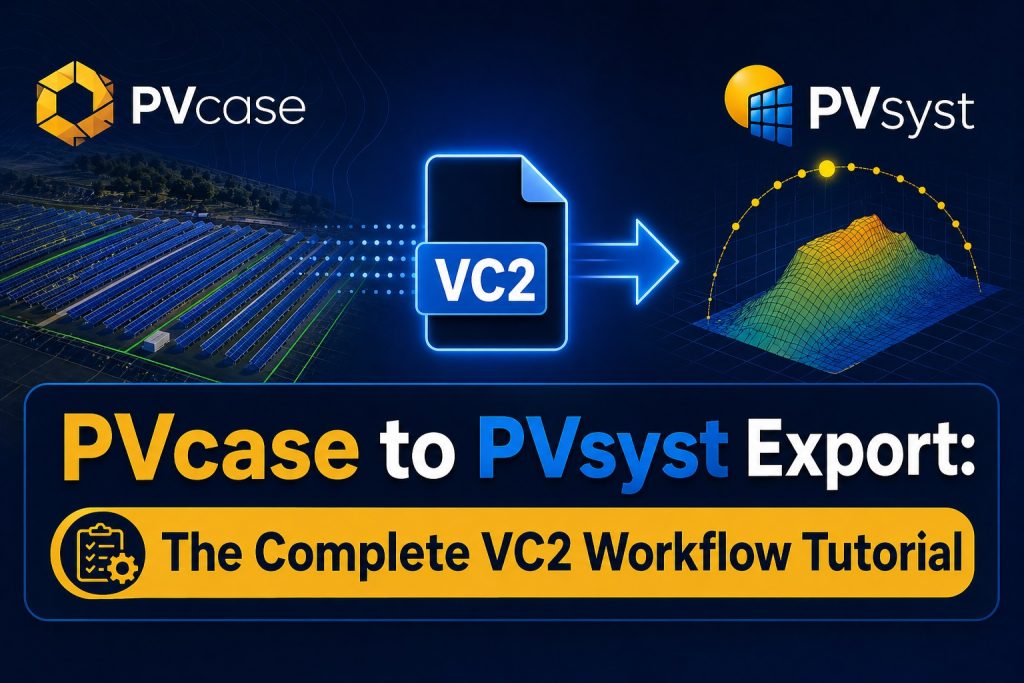
The VC2 file (PVcase’s proprietary format for PVsyst handoff) collapses all of that into one click. It’s now standard practice in European EPCs and is rapidly being adopted across Middle Eastern markets, including a growing number of Iranian solar projects.
Prerequisites and Version Compatibility
Before you start, make sure your PVcase, PVsyst, and AutoCAD versions are compatible. Version mismatch is by far the most common cause of failed exports.
Supported PVcase Versions
VC2 export has been available since PVcase 2.0, but to use the Full Project Export mode (which transfers the electrical layout) you’ll need version 2.4 or higher. The feature is available in both PVcase Ground Mount (utility-scale ground projects) and PVcase Roof Mount (commercial rooftop projects), though Roof Mount export only really makes sense for systems above 50 kW.
Compatible PVsyst Versions
To open a current-format VC2 file you need PVsyst 7.4 at minimum. For full electrical-layout transfer and accurate Shading Factor Table reconstruction, PVsyst 8 is strongly recommended. If you haven’t installed PVsyst 8 yet, see our PVsyst 8 installation guide.
AutoCAD Requirements
PVcase runs as an AutoCAD plugin and needs AutoCAD 2021 or newer for stable performance. On older versions, the VC2 export can crash or run out of memory on projects with thousands of modules. Make sure you have the latest service pack installed.
License Activation Check
Always confirm both PVcase and PVsyst are properly activated before exporting. PVcase blocks the export command in demo mode entirely. PVsyst will accept the VC2 import in demo mode but will limit the final simulation. If you’re hitting demo-mode errors, check our PVsyst Demo Mode fix guide.
Preparing Your PVcase Project Before Export
One of the most common mistakes is exporting straight from a half-finished project and then fighting errors on the PVsyst side. The quality of your output is directly tied to the quality of the project going in. Spend ten minutes on the prep below and save yourself an hour of debugging.
Set Coordinate System and Terrain Heights
Configure your PVcase project in a standard coordinate system — UTM is strongly preferred, especially for projects in the Middle East. Local coordinates are only acceptable for small-scale jobs. Confirm your terrain (DEM or surface mesh) is properly imported and that elevations fall within a sensible range — large outliers usually mean a unit mismatch (feet vs. meters).
Validate Row Layout and Pitch
Before exporting, double-check row placement and pitch. If two rows overlap in PVcase or the pitch falls below the technical minimum, PVsyst will faithfully model that error as unrealistic mutual shading and your yield numbers will be useless. Run PVcase’s built-in clash check first.
Define Electrical Blocks and Strings
If you want a Full Project Export, your combiner boxes, inverters, and string assignments need to be fully defined in PVcase. Each string should be tied to a specific MPPT input. Skip this step and PVsyst will only get the geometry — you’ll have to rebuild the electrical layout by hand.
Tracker and Backtracking Configuration
For utility-scale single-axis tracker projects, define your tracker rotation range and backtracking algorithm parameters in PVcase before export. The geometry transfers cleanly, but the tracker control logic itself has to be re-enabled manually inside PVsyst’s Tracking page.
Clean Up Unnecessary AutoCAD Layers
Turn off or delete layers you don’t need in the export — construction lines, annotations, paper space content, etc. Doing this can shrink the VC2 file by up to 60% and dramatically speeds up the import inside PVsyst, especially for large projects.
Exporting from PVcase: Step by Step
Once your project is clean, the export itself is straightforward:
Step 1: Run the PVS_EXPORT Command
In the AutoCAD command line, type PVS_EXPORT and press Enter. This opens the PVcase export dialog. In newer versions you can also reach it through the ribbon menu (PVcase Tab → Export → To PVsyst).
Step 2: Choose the Export Type
PVcase offers two main modes:
- 3D Shading Scene: Only the 3D geometry transfers, intended purely for shading calculations. Use this if you plan to define the electrical system from scratch inside PVsyst.
- Full Project Export: Geometry + modules + inverters + string layout all transfer together. The recommended mode for most projects.
For your first export, we suggest going with Full Project Export — it’s where the real time savings of this workflow live.
Step 3: Configure VC2 Export Settings
In the same dialog, you can set the geometry detail level. For utility-scale projects with thousands of modules, Medium typically gives the best balance between accuracy and file size. Reserve High for projects under 5 MW where the extra detail is actually meaningful.
Step 4: Save the VC2 File
Pick a destination folder and use a clear naming convention — something like ProjectName_Phase1_v01.vc2. This becomes critical on multi-phase projects where you’ll be exporting and re-importing several times. Expect VC2 files to land somewhere between 5 MB and 50 MB depending on project size.
Importing the VC2 File into PVsyst
Now switch over to PVsyst and bring the project in:
Step 1: Create a New PVsyst Project
Start a new Project and select an appropriate Meteo file. For Middle Eastern and Iranian projects, Meteonorm 8 or NASA-SSE typically work best — more on Iran-specific data later in this guide.
Step 2: Open Near Shadings
From the project page, open the Near Shadings section and click into Construction / Perspective. This is PVsyst’s 3D environment where the imported geometry will land.
Step 3: Import the VC2 File
From the File menu, choose Import → PVcase File (.VC2). Select your VC2 file and verify the Origin Point. PVsyst usually reads the origin correctly from the file, but if your project used local coordinates you may need to set it manually.
Step 4: Match Modules and Inverters
After import, PVsyst tries to match the module and inverter models against its internal database. If a specific model isn’t found, you’ll see a Module Not Found warning. The fix is to download the manufacturer’s .PAN file and add it to your PVsyst database — once done, it’ll be there for every future project too.
Step 5: Verify the Electrical Layout
Open the System page and review the strings-per-MPPT configuration. In about 90% of cases the Full Project Export transfers cleanly, but a final visual check is always worth the 30 seconds it takes.
What Transfers and What Doesn’t
One of the most common questions designers ask is exactly what data the VC2 file carries. The table below is a complete reference:
| Element | Transfers? | Notes |
|---|---|---|
| 3D row geometry | ✓ Complete | Used for Near Shading calculation |
| PV modules | ✓ Name and count | Database matching required |
| Inverters | ✓ Partial | Manual model selection sometimes needed |
| Electrical stringing | ✓ Full Export only | PVcase 2.4+ required |
| Terrain topography | ✓ Complete | Ground surface and row heights |
| DC/AC cable runs | ✗ Not transferred | Define separately in PVsyst |
| BOM and civil works | ✗ Not transferred | Stays in PVcase |
| Trackers (geometry) | ✓ | Control logic configured manually |
| Soiling and Albedo settings | ✗ Not transferred | Set inside PVsyst |
| Backtracking algorithm | ✗ Not transferred | Re-enable manually |
Most Common Errors and How to Fix Them
Based on years of supporting solar engineering teams, the six errors below cover the vast majority of import problems:
Coordinate System Mismatch
This appears when the AutoCAD project’s coordinate system doesn’t line up with the PVsyst Origin Point setting. Fix: In AutoCAD, use the UCS command to reset the coordinate system, then re-export. On the PVsyst side, enable Auto-detect Origin during import.
Module Not Found in PVsyst Database
Cause: the module model used in PVcase isn’t present in your PVsyst database. Fix: Download the PAN file from the manufacturer’s website (JinkoSolar, Trina, LONGi, JA Solar, and most others publish them openly) and add it via Databases → PV Modules → Import. Do this once and you’ll never have to do it again for that model.
3D Scene Slow or Heavy in PVsyst
Cause: detail level was set too high during export. Fix: Re-export from PVcase with detail level set to Medium. If it’s still slow, split the project into smaller phases — PVsyst handles 2 × 25 MW scenes much better than a single 50 MW one.
Row Heights Misaligned on Sloped Terrain
Cause: the DEM file wasn’t properly imported into PVcase or mesh density was too coarse. Fix: Use a mesh density of at least 5 m for sloped sites — this is the value PVcase’s official documentation recommends. Re-import the DEM if needed and re-export.
Invalid VC2 Version Error
Cause: your PVsyst version is too old for the current VC2 format. Fix: Upgrade to PVsyst 7.4 or, ideally, version 8. If you can’t upgrade immediately, PVcase has a Legacy VC2 Format option in the export dialog that produces a backward-compatible file.
Wrong Origin Point After Import
Cause: project coordinates were stored as local rather than UTM. Fix: Inside PVsyst’s Construction environment, manually set the Origin to a known reference point (e.g., the northwest corner of the site) and confirm the orientation matches your site plan.
Pro Tips for Higher-Accuracy Simulations
Once your import is clean, a few extra settings will get your simulation results much closer to real-world performance:
- Use a precise horizon file: For mountainous sites or sites with significant natural obstructions, generate a horizon profile via Meteonorm or the horizON app and load it into PVsyst’s Horizon page.
- Validate the Shading Factor Table: After import, always run Calculate Table so PVsyst computes the full-year shading coefficient matrix. Skipping this step is one of the silent killers of simulation accuracy.
- Tune Albedo properly: Set ground reflectance to match the actual surface — around 0.20 for bare soil, 0.25 for dry grass, 0.30+ for snowy regions, and as low as 0.15 for asphalt or dark gravel.
- Optimize the DC/AC ratio: After your first run, look at the inverter clipping losses. For Iran and most of the MENA region, an ideal DC/AC ratio is typically between 1.20 and 1.30, depending on module choice.
- Run P50/P90 analysis: Once geometry is locked in, always run the probabilistic P50/P90 yield analysis — this is the number lenders and investors actually care about.
Iran-Specific Considerations
Iran’s diverse climate creates both challenges and opportunities for solar plant design. Here are a few key points for projects in Iranian markets:
Meteo Data for Iranian Sites
For major Iranian cities (Tehran, Isfahan, Mashhad, Yazd, Shiraz, Bandar Abbas), Meteonorm 8 generally provides reliable irradiance data. For more remote regions where Meteonorm coverage is thinner, NASA-SSE is a workable fallback, though it tends to be slightly conservative — useful for bankable models, less so for marketing pitches.
Soiling Loss Coefficient
Central Iran’s arid climate and frequent dust storms produce significantly higher soiling losses than European baselines. PVsyst’s default 2–3% is too low for Iran. We recommend 5–8% for Yazd, Kerman, Sistan-Baluchestan, and the central plateau, while northern provinces (Gilan, Mazandaran) can typically stay around 2–3%. If your site has automated cleaning, you can reduce these numbers — but document the cleaning schedule in your assumptions.
Iranian Market Modules and Inverters
Many of the Chinese modules common in Iran (some Yingli, Risen, and Talesun lines) may not appear in PVsyst’s default database. In those cases, pull the PAN file from the manufacturer’s site or contact the DoCrack team for a verified file. On the inverter side, Sungrow, Huawei, and Goodwe — the three brands dominating Iranian projects — all have full database coverage.
SATBA Tariffs and Financial Analysis
If your project runs under SATBA’s guaranteed power purchase scheme, make sure you load the current USD/IRR tariff into PVsyst’s Economic Analysis page. SATBA tariffs are revised periodically and feed directly into IRR and payback period calculations — using last year’s number can produce a financial model that no longer reflects reality.
Frequently Asked Questions
Can I continue my PVcase project in PVsyst without redrawing?
Yes — that’s exactly what the VC2 file is built for. With Full Project Export, the entire geometry, plus modules, inverters, and stringing, transfer automatically. The only things you’ll set up manually inside PVsyst are the meteo file, soiling, and albedo.
Which versions of PVcase and PVsyst work together best?
For best results, pair PVcase 2.4 or higher with PVsyst 7.4 or 8. PVsyst 8 has noticeably better handling of bifacial modules and an updated shading engine — for any project starting in 2026, version 8 is the right choice.
What is the VC2 file and what does it contain?
VC2 is PVcase’s proprietary format. It packs the project’s 3D geometry, module and inverter data, and — in Full Project mode — the complete electrical stringing into a single file. Typical sizes range from 5 MB to 50 MB depending on project scale.
Does the string layout transfer too?
In recent PVcase versions with Full Project Export, yes — the full string layout transfers. That said, always do a quick visual check inside PVsyst to confirm strings are mapped to MPPT inputs correctly before running the simulation.
Why does PVsyst show a “Module Not Found” warning?
Because the exact module model from PVcase isn’t in your local PVsyst database. The fix is simple: download the PAN file from the manufacturer’s website and import it via Databases → PV Modules → Import. One-time setup that pays off forever.
What’s the difference between Shading Scene and Full Project export?
The first transfers only the 3D geometry for shading calculations — you define the electrical system manually in PVsyst. The second transfers the entire project including modules, inverters, and stringing. For 95% of projects, Full Project is the better choice.
Do I need full licenses for both tools to use this workflow?
PVcase definitely needs an active license — the export command is disabled in demo mode. PVsyst can import the VC2 file in demo mode, but for the final simulation and any official report, you’ll need a fully licensed copy.
Does this workflow make sense for residential projects?
It works — PVcase Roof Mount can export rooftop projects through the same flow. But for systems below 20 kW, it’s often faster to just design directly in PVsyst. The PVcase + PVsyst workflow really earns its keep on commercial projects (50 kW+) and utility-scale plants.
Where can I get PVcase and PVsyst licenses in Iran?
The DoCrack team has more than 20 years of experience in engineering software and provides verified, full licenses for both tools along with free technical consultation. Reach out via Telegram @DoCrackMe for current pricing and support.
Conclusion
The PVcase → PVsyst workflow via VC2 is one of the most powerful productivity wins in modern solar engineering. It collapses what used to be a three-day handoff for a 50 MW project into well under two hours, and it eliminates the human error that creeps in whenever you redraw complex geometry by hand.
If you’re stepping into utility-scale projects for the first time, mastering this workflow is one of the highest-leverage skills you can pick up. The PVcase + PVsyst combination is now the gold standard for bankable solar plant design worldwide — and for Iranian and broader MENA-region projects, it’s quickly becoming the expected baseline.
For full PVcase Ground Mount and PVsyst 8 Professional licenses, or for technical consultation on your specific project, get in touch with DoCrack. With over 20 years in the field, our team is ready to help.
Get a license — free consultation
Usually reply within a few hours — free consultation, no upfront payment
Related articles: