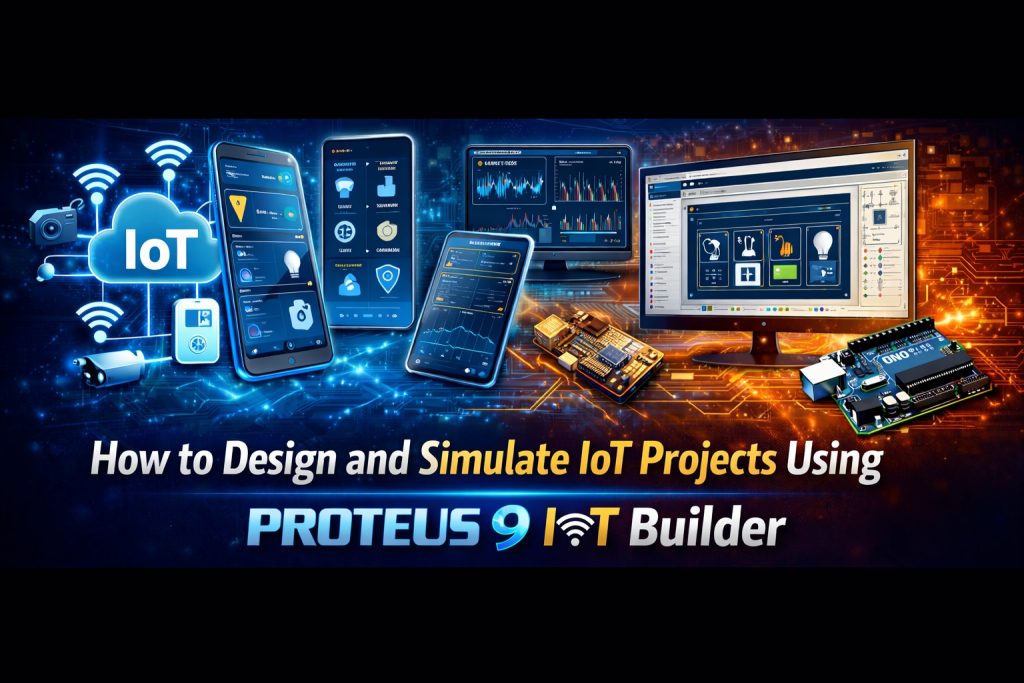
The Internet of Things has moved from a buzzword to a core engineering discipline — and the biggest challenge for most developers is not coming up with an idea, but bridging the gap between schematic design, firmware development, and a working connected interface. Proteus 9 IoT Builder solves exactly this problem. It provides a complete end-to-end workflow — from hardware schematic through firmware logic to a mobile-ready UI — all within a single environment, with full simulation before a single component is soldered.
In this guide you’ll learn what IoT Builder is, how it fits into the Proteus 9 ecosystem, and how to build, simulate, and deploy a real IoT project step by step — whether you’re targeting Arduino, Raspberry Pi, or MicroPython hardware.
What Is Proteus IoT Builder?
IoT Builder is an add-on module to Visual Designer and Proteus VSM that extends embedded design into the IoT domain. At its core it does three things that typically require separate tools and expertise:
- Hardware design — schematic capture of the embedded device and its peripherals, inside Proteus ISIS
- Firmware development — programming logic in flowcharts, Arduino C++, or Python/MicroPython inside Visual Designer
- Remote front panel design — a drag-and-drop UI editor for building mobile and browser-based control interfaces with buttons, dials, charts, message logs, and displays
All three layers are tied together by Proteus VSM simulation, so you can test the complete system — hardware responding to UI input, firmware logic running, sensors feeding data to a dashboard — before buying a single component or writing a deployment script.
On deployment, the front panel is served to any mobile phone, tablet, or web browser by a micro web server running on the appliance itself. No cloud service required, no external backend to maintain.
Supported Target Platforms
- Arduino — via Visual Designer for Arduino (flowchart or C++)
- Raspberry Pi — via Visual Designer for Raspberry Pi (flowchart or Python)
- MicroPython — via Visual Designer for MicroPython (Pico, Pico W, ESP32, ESP32-S3) — new in Proteus 9.1
The IoT Builder Workflow: Overview
The complete workflow from idea to deployed IoT appliance follows five stages:
- Design the hardware on the schematic using the Peripheral Gallery
- Build the front panel in the IoT Builder editor
- Write the firmware using flowcharts or code
- Simulate and debug the full system in Proteus VSM
- Deploy to physical hardware with one click
Let’s walk through each stage in detail.
Stage 1: Design the Hardware
Create a New Visual Designer Project
- Open Proteus 9 and select New Flowchart Project from the home screen.
- Choose your target platform — Arduino, Raspberry Pi, or MicroPython board (e.g., Raspberry Pi Pico W for a Wi-Fi capable IoT device).
- The Visual Designer IDE opens alongside the ISIS schematic editor.
Add Peripherals from the Gallery
The Peripheral Gallery is your component catalogue. It contains dozens of pre-wired hardware blocks corresponding to real-world shields, HATs, Grove modules, and breakout boards. When you add a peripheral from the gallery, Proteus automatically:
- Places the correct schematic circuitry on the canvas
- Connects it to the microcontroller’s appropriate pins
- Adds high-level control methods to the flowchart editor
For a typical IoT project you might add:
- A temperature/humidity sensor (e.g., DHT22) to read environmental data
- An OLED display for local readout
- A relay module for controlling external loads (lights, fans, pumps)
- An LED indicator for status feedback
You can also design custom hardware directly on the schematic for components not in the gallery — Proteus VSM supports thousands of analog and digital peripheral models.
Stage 2: Build the Front Panel
The front panel is the remote interface your users will see on their phone, tablet, or browser. It is designed inside the IoT Builder panel editor, accessible from the project tree.
Available UI Controls
IoT Builder ships with a library of professionally designed SVG controls, including:
| Control Type | Use Case |
|---|---|
| Button | Trigger actions on the hardware (e.g., turn relay on/off) |
| Toggle Switch | Enable/disable a hardware state persistently |
| Dial / Gauge | Display sensor readings (temperature, pressure, speed) |
| Slider | Set a value remotely (e.g., motor speed, LED brightness) |
| Chart / Graph | Plot live or historical sensor data over time |
| Display / Label | Show text values or status messages |
| Message Log | Scrolling event or debug log from the hardware |
| Login Control | User authentication for access-controlled appliances |
| Tab Pages | Organise a complex interface into multiple views |
Designing the Layout
Drag controls from the library onto the panel canvas and arrange them to suit your interface. Controls can be set to change behaviour based on login state — hidden or disabled for anonymous users, fully active for admins. This makes it straightforward to build multi-user IoT applications with different access levels.
Stage 3: Write the Firmware
Once the hardware and front panel are set up, you write the logic that connects them. IoT Builder supports three programming approaches:
Option A — Flowchart Programming (Beginners & Education)
In Visual Designer’s flowchart editor, you drag and drop method blocks, decision diamonds, delay blocks, and assignment boxes onto a visual canvas to build your program logic. Every peripheral in the gallery — and every IoT control on the front panel — exposes simple method calls that appear as draggable blocks. For example:
DHT22.ReadTemperature()— reads the sensor and stores the valueTemperatureGauge.SetValue(temp)— updates the front panel dialRelay.SetState(ON)— activates the relay when a button is pressed
No syntax knowledge required. The flowchart compiles to the correct code for the target platform automatically.
Option B — Arduino C++ (Advanced Arduino Users)
For users comfortable with the Arduino framework, IoT Builder can be used as an add-on to Proteus VSM for Arduino. Write your firmware in C++ using the standard Arduino library, and use IoT Builder’s API to bind front panel events and update UI controls programmatically.
Option C — Python / MicroPython (Raspberry Pi & Pico/ESP32)
Visual Designer can convert any flowchart to Python (for Raspberry Pi) or MicroPython (for Pico/ESP32) source code, giving experienced developers a starting point to refine and extend. You can also write Python/MicroPython code directly in VSM Studio. In Proteus 9.1, IoT Builder for MicroPython was introduced, combining flowchart programming, MicroPython scripting, and IoT dashboard building for Pico W and ESP32 targets.
Stage 4: Simulate and Debug the Full System
This is the stage that sets Proteus IoT Builder apart from every other IoT development tool. Before touching any hardware, press Play in Proteus and the entire system comes to life:
- The microcontroller model on the schematic executes your firmware
- Virtual sensors return simulated values
- The IoT front panel appears on screen and responds to your clicks
- The UI and hardware interact exactly as they will in the real deployment
What You Can Do During Simulation
- Click buttons on the virtual front panel and watch the relay or LED on the schematic respond instantly
- Adjust a slider on the UI and see the PWM duty cycle change on the oscilloscope
- Watch live graphs update as your simulated sensor produces values
- Set breakpoints in your flowchart or code — the entire simulation pauses, including the front panel
- Single-step through the program and inspect variable values at each step
- Use virtual instruments — oscilloscope, logic analyser, I2C/SPI decoder — to probe the schematic signals
- Test the login flow — verify that controls are correctly hidden or disabled before authentication
Practical Example: Remote Temperature Monitor with Relay Control
Set up a DHT22 temperature sensor connected to a Raspberry Pi Pico W. The front panel has a temperature gauge, a live chart plotting temperature over time, and a button to activate a cooling relay. In simulation: press Play, watch the gauge display the simulated temperature reading, see the chart trace update every second, and click the relay button — the relay component on the schematic activates immediately. Set a breakpoint at the relay logic and single-step to verify the firmware only activates the relay above a threshold temperature. All of this happens entirely in software — zero hardware required.
Stage 5: Deploy to Physical Hardware
Once your simulation runs correctly, deployment is a single step. Proteus IoT Builder handles:
- Firmware compilation and upload — the same code that ran in simulation is compiled and flashed to the physical board
- Front panel transfer — the UI graphics, layout, and web server logic are packaged and stored on the appliance
- Micro web server — the appliance hosts its own front panel, accessible to any device on the same Wi-Fi network via a browser or the Proteus IoT Controller app (available for iOS and Android)
Because the design was fully validated in simulation, first-run success on physical hardware is typical — rather than the usual cycle of flash, test, fix, reflash.
Building Multi-Device Systems with MQTT
For more advanced IoT architectures involving multiple connected devices, IoT Builder includes native MQTT support. MQTT (Message Queuing Telemetry Transport) is a lightweight publish/subscribe protocol designed for low-bandwidth, high-latency, or unreliable networks — the standard backbone of most real-world IoT deployments.
With MQTT in IoT Builder you can:
- Connect multiple Proteus appliances to a shared MQTT broker
- Publish sensor data from one device and subscribe to it from another
- Build hub-and-spoke IoT architectures where a central controller coordinates multiple nodes
- Simulate the full MQTT message flow within Proteus before going to hardware
This makes IoT Builder useful not just for simple single-device projects, but for building and validating complete connected systems in a software environment.
IoT Builder in Proteus 9.1: MicroPython and New Features
Proteus 9.1 (released October 2025) expanded IoT Builder significantly with the introduction of Visual Designer for MicroPython and IoT Builder for MicroPython. Key additions include:
- IoT dashboard building for Raspberry Pi Pico W and ESP32 targets
- Combination of flowchart programming with MicroPython scripting in the same project
- Drag-and-drop IoT controls for MicroPython-based appliances
- Robot Turtle Simulation — classroom-ready robotics simulation (line following, obstacle avoidance) for educational IoT contexts
- Tighter integration with the EDAi ProPilot AI assistant for firmware coding help during IoT development
Who Should Use Proteus IoT Builder?
- Electronics engineers building connected products who want to validate the full system before manufacturing
- Embedded developers who need to prototype IoT firmware quickly without assembling hardware for every iteration
- Students and educators teaching IoT principles, MQTT, access control, and sensor integration in a risk-free virtual environment
- Makers and hobbyists building home automation projects (smart thermostats, motor controllers, environmental monitors) who want a professional simulation workflow
- R&D teams doing rapid prototyping — simulate the concept, validate it, then invest in hardware
IoT Builder vs. Alternatives
| Feature | Proteus IoT Builder | TinkerCAD | Node-RED | ThingSpeak |
|---|---|---|---|---|
| Hardware simulation | ✅ Full VSM | ✅ Limited (Arduino only) | ❌ No | ❌ No |
| Firmware co-simulation | ✅ Yes | ✅ Basic | ❌ No | ❌ No |
| Custom UI design | ✅ Yes (drag-and-drop) | ❌ No | ✅ Dashboard | ✅ Limited |
| MQTT support | ✅ Native | ❌ No | ✅ Native | ✅ Yes |
| PCB design integration | ✅ Yes | ❌ No | ❌ No | ❌ No |
| Offline / no cloud | ✅ Fully local | ❌ Cloud only | ✅ Self-hosted | ❌ Cloud only |
| Beginner friendly | ✅ Flowcharts | ✅ Yes | ⚠️ Moderate | ⚠️ Moderate |
| MicroPython support | ✅ Pico, ESP32 | ❌ No | ❌ No | ❌ No |
Frequently Asked Questions (FAQ)
Do I need to know how to code to use Proteus IoT Builder?
No. The flowchart programming environment in Visual Designer lets you build complete firmware logic by dragging and dropping blocks — no syntax knowledge required. Experienced developers can switch to C++ or Python/MicroPython code at any point.
Which hardware platforms does IoT Builder support?
IoT Builder supports Arduino (including Wi-Fi-capable boards), Raspberry Pi (2B and above), Raspberry Pi Pico W, and ESP32/ESP32-S3 via MicroPython. MQTT-capable boards are recommended for multi-device projects.
Can I simulate the mobile front panel in Proteus before deploying?
Yes. The entire system — hardware, firmware, and the mobile front panel — is simulated inside Proteus. You interact with the virtual front panel on your PC screen during simulation exactly as a user would on a real mobile device after deployment.
Is an internet connection or cloud account required for IoT Builder?
No. The deployed appliance hosts its own micro web server. Your front panel is served locally to any device on the same Wi-Fi network. No external cloud service is required, though MQTT can be configured to route through a cloud broker if desired.
What is the Proteus IoT Controller app?
It is a free companion app for iOS and Android published by Labcenter Electronics. After deploying your Proteus IoT project to hardware, the app connects to the appliance’s micro web server and displays the front panel on your mobile device — giving you a native app experience without building one from scratch. Some controls can also use Android hardware features like the accelerometer.
Can IoT Builder handle multiple connected devices?
Yes, via MQTT. You can connect multiple appliances to a shared MQTT broker, publish and subscribe to topics between them, and build complete multi-node IoT architectures. The full MQTT communication flow can be simulated in Proteus before deployment.
Is Proteus IoT Builder suitable for teaching IoT in a classroom?
Absolutely. The flowchart editor removes the coding barrier for beginners, the simulation means no physical lab kits are needed, and features like login controls and MQTT teach real-world IoT security and communication concepts in a controlled environment. Proteus 9.1 also added Robot Turtle simulation specifically for classroom-ready robotics and IoT education.
برای خرید این نرم افزار با قیمت مناسب می توانید با پشتیبانی سایت تماس بگیرید و یا در تلگرام پیام دهید
(To buy this software at a reasonable price, send us a message on Telegram)
⇐ تلگرام: t.me/DoCrackMe ⇒
⇐ تلفن تماس: 09368059613 ⇒