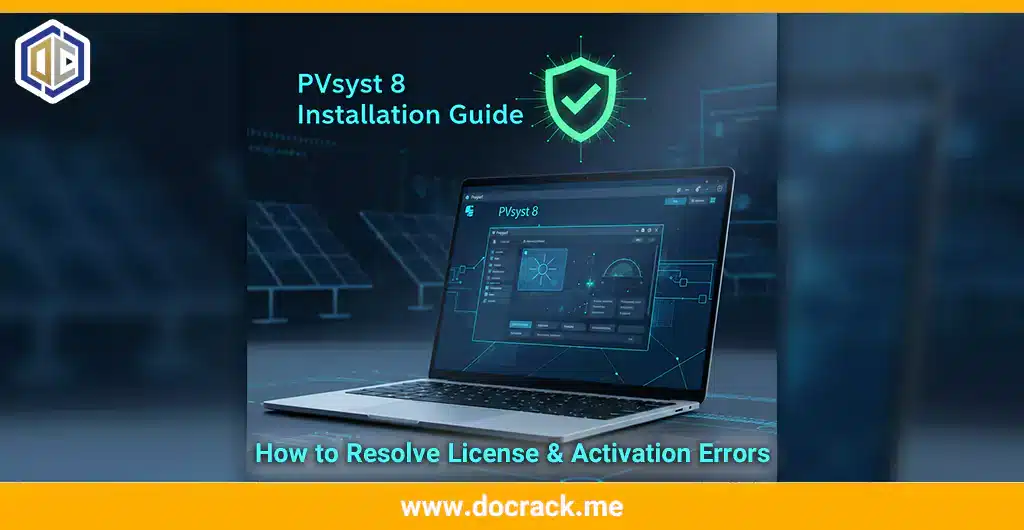
One of the most common frustrations for solar design engineers is launching their software only to find a “Demo Mode” watermark or a “License Not Found” error. When PVsyst runs in Demo Mode, you are restricted from saving projects, exporting data, and accessing full meteorological databases. This can bring a professional project to a complete standstill.
In this guide, we will explore the technical reasons why PVsyst reverts to Demo Mode and provide a step-by-step PVsyst demo mode fix to get your professional workspace back online. Whether you are using PVsyst 7 or the latest PVsyst 8, these solutions apply to the most frequent activation hurdles.
Why Does PVsyst Revert to Demo Mode?
Understanding the “why” is the first step to a permanent fix. PVsyst usually switches to Demo Mode due to one of the following reasons:
-
Antivirus Interference: Your security software has deleted the modified activation file (the “crack” or “patch”).
-
Internet Validation: The software successfully connected to the official servers and identified an invalid license.
-
Registry Mismatch: Traces of an older version or a failed installation are confusing the current license manager.
-
Admin Rights: The software does not have permission to read the license file in the
Program Filesdirectory.
Step-by-Step PVsyst Demo Mode Fix
1. The “Clean Re-patch” Method
If the software was working and suddenly stopped, your antivirus is likely the culprit.
-
Action: Go to your Antivirus “Protection History.” If you see a file related to PVsyst being quarantined, restore it and click “Allow on device.”
-
Re-apply: If the file is gone, disable your antivirus for 10 minutes, copy the activation file from your original download folder, and paste it again into the installation directory:
C:\Program Files\PVsyst8.0\.
2. Blocking PVsyst in Windows Firewall (Crucial)
To prevent the software from “calling home” and revoking your access, you must block its internet communication.
-
Open Windows Firewall with Advanced Security.
-
Click on Inbound Rules > New Rule > Program.
-
Select the PVsyst path, then choose “Block the connection.”
-
Repeat the same steps for Outbound Rules.
-
Result: PVsyst will no longer check for updates or license validity online, keeping your activation stable.
Fixing “License File Not Found” or “Access Denied”
If you receive an “Access Denied” error when trying to open the program:
-
Run as Administrator: Right-click the PVsyst shortcut and select “Properties.” Under the “Compatibility” tab, check the box “Run this program as an administrator.” This ensures the software can write temporary simulation data to your drive without Windows blocking it.
Advanced Troubleshooting: Clearing Registry Traces
Sometimes, a clean slate is needed. If you have tried everything and it still shows Demo Mode:
-
Uninstall PVsyst.
-
Press
Win + R, typeregedit, and press Enter. -
Navigate to
HKEY_CURRENT_USER\Software\and look for any “PVsyst” folders. Delete them. -
Re-install the software following our [Ultimate PVsyst Installation Guide].
How to Keep Your Projects Safe
When working in a patched environment, always take these precautions:
-
Backup Project Files: Regularly copy your
PVsyst_Projectfolder from your Documents to an external drive. -
Don’t Update: If a popup appears saying “A new version of PVsyst is available,” always select “No” or “Remind me later.” Updating will overwrite your fix.
Frequently Asked Questions (FAQ)
Q: Can I use PVsyst online while the fix is active? A: No. It is highly recommended to keep the software offline. For downloading meteorological data (Meteonorm), try to import files manually rather than using the direct web-download feature within the app.
Q: Does this fix work for PVsyst 8.1 and higher? A: Yes, as long as the activation file matches the version number of the installed software.
Conclusion
A PVsyst demo mode fix is usually a matter of managing your antivirus and firewall settings correctly. By following the steps above—specifically blocking the app from the internet and ensuring administrator privileges—you can maintain a stable, fully functional environment for your solar engineering needs.
Need a different version? If your current version is too buggy, we recommend trying the stable [PVsyst 8.0.6 Build] which has the highest success rate among our users.
Facing a specific error code like “Error 17”? Post a screenshot in the comments, and our community will help you find a solution!
To purchase the software or inquire about professional licensing and support, please contact us:
Telegram: t.me/DoCrackMe
Phone: +989368059613