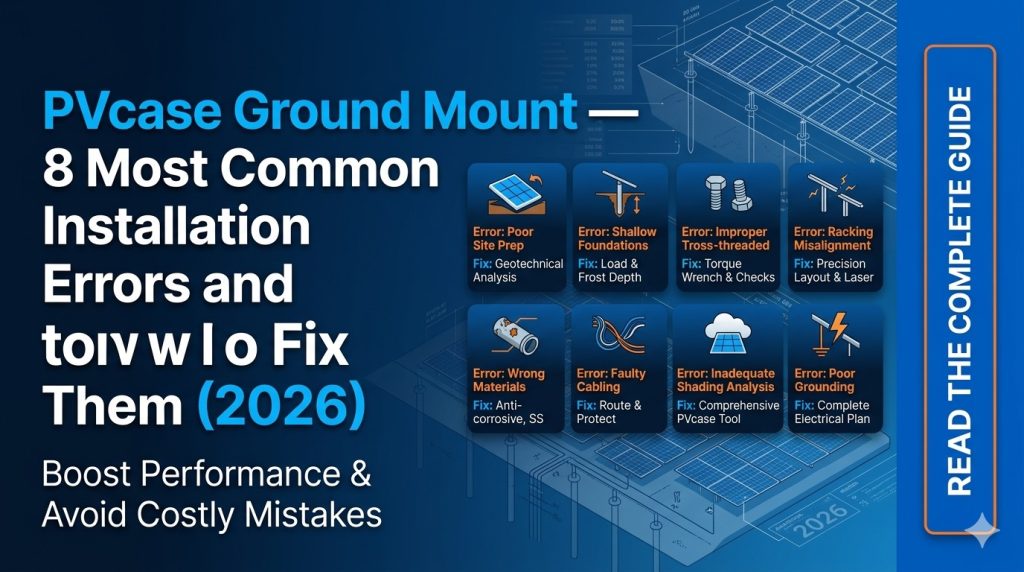
PVcase Ground Mount installs cleanly in most environments — but when it doesn’t, the errors tend to cluster around the same handful of root causes: AutoCAD was running during install, .NET Framework is the wrong version, the WMI service is broken on a corporate machine, or antivirus software is quietly deleting critical files. None of these are catastrophic, and all of them have clear fixes.
This guide covers the eight most common PVcase installation and activation problems, pulled directly from PVcase’s official help documentation and real-world engineering workflows. Each entry describes the symptom, the root cause, and the exact steps to resolve it — so you can get back to designing without waiting days for a support ticket.
If you need assistance with PVcase licensing or installation on your specific environment, contact our team via Telegram @DoCrackMe.
Error 1 — PVcase Tab Missing from the AutoCAD Ribbon
Symptom
You install PVcase successfully — the setup wizard completes without errors — but when you open AutoCAD, the PVcase Ground Mount tab is not visible anywhere in the ribbon, including under the Add-ins section.
Root Cause
This is the most frequently reported post-installation issue. It is almost always a ribbon registration problem, not a broken installation. AutoCAD loads plugin ribbon configurations on startup, and under certain conditions — profile conflicts, workspace mismatches, or a previous partial install — the PVcase CUI (Custom User Interface) file fails to register correctly on first launch.
Fix
- In the AutoCAD command bar, type CUILOAD and press Enter. A dialog box listing all loaded CUI files will open.
- In the list, locate and select 3DSOLARPLANNER (this is PVcase Ground Mount’s registered name in AutoCAD).
- Click Unload to remove it from the active session, then close the dialog.
- Fully close AutoCAD — not just the drawing, but the entire application.
- Reopen AutoCAD. On startup, AutoCAD will reload all registered CUI files, and PVcase should now appear in the ribbon under the Add-ins tab.
If the tab still does not appear after this process, run a Repair from the original PVcase installer (right-click the installer → Repair). This re-registers the CUI file without requiring a full reinstall.
Note for Roof Mount users: the CUI name is PVCASERM — use this in step 2 instead of 3DSOLARPLANNER.
Error 2 — Installer Fails to Run or Crashes Partway Through
Symptom
The PVcase installer launches but crashes during setup, or exits with a generic error code before completing. In some cases, the installer appears to complete but PVcase does not appear in AutoCAD at all.
Root Cause
The single most common cause of installation failure is running the installer while AutoCAD is open. PVcase uses a custom installer (not the standard Autodesk App Store installer) that needs to write files to AutoCAD’s plugin directory and register its CUI profile. If AutoCAD is running, those files are locked and the installer cannot write to them.
A secondary cause is running the installer without administrator privileges, which prevents it from writing to protected system directories.
Fix
- Close all AutoCAD instances before running the installer. Check the Windows taskbar and Task Manager to confirm no AutoCAD processes are running in the background.
- Right-click the PVcase installer file and select Run as Administrator.
- Follow the setup wizard. The installer will automatically detect your installed AutoCAD version and register the plugin to the correct profile.
- After the wizard completes, launch AutoCAD and verify the PVcase tab appears in the ribbon.
If you are on a managed corporate machine where you do not have local administrator rights, contact your IT department to run the installer with elevated privileges. PVcase installation cannot succeed without administrator-level access to the machine.
Error 3 — .NET Framework Version Error
Symptom
The PVcase installer shows an error message referencing .NET Framework, or PVcase installs but fails to load inside AutoCAD, sometimes with a cryptic error about a missing runtime component.
Root Cause
PVcase Ground Mount requires .NET Framework 4.7.2 or higher. If your Windows installation has an older .NET version — or if .NET Framework is corrupted on the machine — the plugin cannot load its managed components inside AutoCAD’s process. This is particularly common on older Windows 10 installations that have not received .NET updates, and on clean installs without Windows Update applied.
Fix
- Check your current .NET Framework version: open Control Panel → Programs → Programs and Features → Turn Windows features on or off and look for .NET Framework entries.
- If version 4.7.2 or later is not present, download the .NET Framework 4.7.2 runtime installer directly from Microsoft: https://dotnet.microsoft.com/download/dotnet-framework-runtime
- Install it (requires a system restart).
- After the restart, re-run the PVcase installer.
On machines without internet access, download the offline installer for .NET Framework 4.7.2 from Microsoft’s download center and transfer it via USB. The offline installer does not require a network connection to run.
Error 4 — License Activation Fails: Clicking Activate Does Nothing
Symptom
PVcase loads correctly in AutoCAD and the activation dialog appears, but when you enter your license key and click Activate, nothing happens — no confirmation, no error message, just silence. The activation dialog stays open and the software remains unlicensed.
Root Cause
This behavior is caused by a broken or corrupted Windows Management Instrumentation (WMI) service on the machine. PVcase’s license activation mechanism uses WMI to read hardware identifiers (used to generate a machine fingerprint for node-locked licenses). If WMI is not functioning correctly — which happens on corporate machines that have had aggressive IT hardening, on machines rebuilt from cloned images, or after certain Windows updates — the activation call silently fails.
Fix
- Open the Start menu, type wmimgmt.msc, and press Enter.
- In the WMI Management console, right-click WMI Control (Local) and select Properties.
- On the General tab, check the status description. If it does not begin with “Successfully connected to…”, WMI is broken on this machine.
- To repair WMI, open an elevated Command Prompt (Run as Administrator) and run the following commands in sequence:
net stop winmgmtwinmgmt /resetrepositorynet start winmgmt - Restart the machine.
- Reopen AutoCAD, launch PVcase, and attempt activation again.
If WMI repair does not resolve the issue on a corporate machine, escalate to your IT department — some enterprise environments restrict WMI access via Group Policy, which requires an admin-level policy change to fix.
Error 5 — Antivirus Deletes or Quarantines PVcase Files
Symptom
PVcase appears to install correctly, but after installation, the plugin fails to load — or it loaded once and now refuses to start. Windows Defender or a third-party antivirus may show a notification about a blocked or quarantined file, or there may be no notification at all.
Root Cause
Some antivirus engines flag components of engineering software plugins — particularly licensing-related DLLs and CUI registration files — as potentially suspicious, due to their similarity in behavior to other types of software that antivirus tools are trained to detect. This is a false positive: the files are not malicious, but their behavior (hardware fingerprinting for license validation, registry writes) can trigger heuristic detection.
Windows Defender’s real-time protection is particularly aggressive about quarantining files during installation, sometimes removing them before the installer finishes writing them to disk.
Fix
- Before running the PVcase installer, temporarily disable Windows Defender Real-time Protection: go to Windows Security → Virus & threat protection → Manage settings and toggle Real-time protection off.
- Run the PVcase installer as Administrator.
- After installation completes, re-enable real-time protection.
- Add the PVcase installation directory to Windows Defender’s exclusions list so future updates are not quarantined:Go to Windows Security → Virus & threat protection → Manage settings → Add or remove exclusionsAdd the folder:
C:\Program Files\PVcase\(or wherever PVcase installed) - Also add AutoCAD’s plugin directory to exclusions if your antivirus scans it aggressively:
C:\ProgramData\Autodesk\ApplicationPlugins\
If you use a third-party antivirus (Kaspersky, ESET, Bitdefender, etc.), the exclusion process is similar but accessed through that tool’s settings panel. Check your quarantine folder first — if PVcase files were already quarantined, restore them before adding exclusions.
Error 6 — PVcase Installed but Incompatible with Installed AutoCAD Version
Symptom
PVcase loads in AutoCAD but some functions are missing, grayed out, or produce errors. Alternatively, PVcase does not appear at all even after successful installation, specifically because your AutoCAD version is outside the supported range.
Root Cause
PVcase Ground Mount 2.56 officially supports AutoCAD 2020 through AutoCAD 2026. It does not support AutoCAD LT (the lightweight version of AutoCAD that does not allow third-party plugins), AutoCAD 2019 or earlier, or older versions of Autodesk Civil 3D below 2021.
Engineers upgrading from older AutoCAD versions sometimes install PVcase before upgrading AutoCAD, or install PVcase against a newer AutoCAD version not yet in the supported list at the time of their PVcase release.
Fix
- Verify your AutoCAD version: in AutoCAD, type ABOUT in the command bar to display the version information.
- Confirm you are running AutoCAD (full version) 2020, 2021, 2022, 2023, 2024, 2025, or 2026 — not AutoCAD LT.
- If you are running AutoCAD LT, PVcase cannot be installed — LT does not support .NET-based add-ins. You must upgrade to full AutoCAD.
- If your AutoCAD version is supported but PVcase still doesn’t load, check whether a newer PVcase build has been released from the License Manager portal — PVcase regularly issues compatibility updates for new AutoCAD releases.
Error 7 — Terrain Mesh Generation is Extremely Slow or Freezes AutoCAD
Symptom
After importing terrain data and attempting to generate a terrain mesh in PVcase, AutoCAD becomes unresponsive for an extended period — minutes or more — or freezes entirely and must be restarted. This is not a installation error per se, but it is one of the most common performance issues reported by new users immediately after getting PVcase running.
Root Cause
Terrain mesh generation is computationally intensive. The processing time scales directly with mesh density (resolution) and the size of the terrain area. New users frequently set mesh density too high on their first attempt — typically defaulting to 1-meter resolution on a 50+ hectare site — which creates a mesh with millions of triangles that overwhelms AutoCAD’s graphics pipeline.
Fix
- Start with a low mesh density of 5 meters or more for initial layout work. PVcase’s own documentation recommends this: a 5-meter mesh provides sufficient detail for layout generation and shading analysis without severe performance impact.
- After your layout is finalized and you are preparing for PVsyst export, you can regenerate the mesh at higher density (2–3 meters) for the specific areas where terrain accuracy most affects shading results.
- Use Xref (external reference) for your terrain DWG file rather than importing it directly into your working file. This keeps the working file light and allows AutoCAD to manage terrain geometry separately from the design geometry.
- Ensure your machine meets the recommended hardware spec: 16 GB RAM minimum, dedicated GPU with 4 GB VRAM, SSD storage. Terrain mesh operations on rotating hard drives are significantly slower than on SSDs.
- Close other applications and browser tabs during mesh generation to maximize available RAM.
Error 8 — License Key Not Accepted / “Invalid License” on First Launch
Symptom
PVcase loads, the activation dialog appears, you enter your license key from the License Manager portal, and PVcase reports that the key is invalid or not recognized — even though you copied it directly from the portal.
Root Cause
This is usually one of three things: a copy-paste error introduced a space or invisible character into the key, the license key belongs to PVcase Roof Mount but you installed PVcase Ground Mount (or vice versa), or the license has been deactivated on the portal side (for example, if your subscription lapsed or was transferred to another machine).
Fix
- Log in to the PVcase License Manager portal. In the PVcase for AutoCAD section, locate your license key and use the Copy button rather than manually selecting and copying the text. This eliminates invisible character errors.
- Verify that the license displayed in the portal is for Ground Mount, not Roof Mount. These are separate licensed products with separate keys.
- Check that your license subscription is active: the License Manager shows license status and expiry date. If expired, renew through PVcase sales before attempting activation.
- If your license was previously activated on another machine, check the License Manager for the active seat count. If all seats are occupied, you must deactivate one before activating on a new machine.
- For machines without internet access, PVcase supports offline activation. Contact PVcase support at support@pvcase.com or reach our team via Telegram @DoCrackMe for the offline activation procedure.
Quick Reference: Error Diagnosis Table
| Symptom | Most Likely Cause | First Fix to Try |
|---|---|---|
| Ribbon tab missing after install | CUI registration failed | CUILOAD → Unload 3DSOLARPLANNER → restart AutoCAD |
| Installer crashes or fails silently | AutoCAD open during install / no admin rights | Close AutoCAD → Run as Administrator |
| Plugin won’t load in AutoCAD | .NET Framework 4.7.2 missing | Install .NET 4.7.2 from Microsoft → reinstall PVcase |
| Activate button does nothing | WMI service broken | Repair WMI via wmimgmt.msc → reset repository |
| Plugin loads once then disappears | Antivirus quarantined plugin files | Check quarantine → restore files → add exclusion |
| Functions grayed out or missing | Unsupported AutoCAD version or AutoCAD LT | Verify AutoCAD version with ABOUT command |
| AutoCAD freezes during terrain mesh | Mesh density too high for machine | Use 5m+ mesh density → use Xref for terrain |
| License key not accepted | Copy-paste error / wrong product key / expired | Use Copy button in License Manager portal → verify expiry |
Before Contacting Support — Checklist
Before reaching out to PVcase support or our team, run through this checklist. Most issues are resolved at step 3 or 4:
- ✅ AutoCAD was fully closed before running the PVcase installer
- ✅ Installer was run with Run as Administrator
- ✅ .NET Framework 4.7.2 or higher is confirmed installed
- ✅ WMI status checked via wmimgmt.msc shows “Successfully connected”
- ✅ Antivirus exclusions added for PVcase and AutoCAD plugin directories
- ✅ AutoCAD version confirmed as 2020–2026 full (not LT)
- ✅ License key copied from License Manager portal (not typed manually)
- ✅ CUILOAD / unload / restart cycle attempted for ribbon tab issue
Frequently Asked Questions
Can I install PVcase on multiple computers with one license?
Node-locked PVcase licenses are tied to a specific machine. To move the license, you must deactivate it through the PVcase License Manager portal and then activate it on the new machine. Most license plans allow a limited number of active seats. Floating (network) licenses allow multiple users to share a pool of activations — contact PVcase sales or our team for multi-seat pricing.
Does PVcase work with AutoCAD LT?
No. AutoCAD LT does not support third-party .NET plugins. PVcase Ground Mount requires full AutoCAD (2020 or later). If you are currently on AutoCAD LT, you will need to upgrade to a full AutoCAD subscription before installing PVcase.
My company’s IT policy prevents me from disabling antivirus. What can I do?
Ask your IT administrator to add the PVcase installation directory and AutoCAD’s plugin directory to the antivirus exclusion list before you run the installer. Provide them with the specific paths so they can create targeted exclusions without requiring a full antivirus disable. This is a standard procedure for enterprise engineering software deployments.
PVcase was working fine and stopped loading after a Windows update. What happened?
Windows updates occasionally reset or break the WMI service (see Error 4), update .NET Framework in ways that affect plugin compatibility, or modify AutoCAD workspace settings that include ribbon CUI configurations. Run through the CUILOAD fix first (Error 1), then check WMI status (Error 4). If those don’t resolve it, reinstall PVcase after the update to re-register all components.
How do I activate PVcase without an internet connection?
PVcase supports offline activation. The process involves generating a machine fingerprint file on the offline machine, transferring it to an internet-connected machine for portal registration, then transferring the resulting activation file back to the offline machine. Contact PVcase support at support@pvcase.com or our team via Telegram @DoCrackMe for the step-by-step offline activation procedure.
Get a license — free consultation
Pricing depends on version and number of users. Message us on Telegram and we’ll reply with an exact quote — no commitment required.
|
✓
20+ years experience
Software engineers with a long track record
|
⚡
Delivered within 24h
Your license is sent within one business day
|
↩
Money-back guarantee
If the license doesn’t work, we refund in full
|
Usually reply within a few hours — free consultation, no upfront payment